We’ve enhanced Marketplace App Access controls to give accounts more flexibility over which apps their accounts can access, while also addressing gaps in the existing approval system.
Accounts can now choose to show only approved apps to accounts and manage approvals for all Marketplace apps from a single view.
As part of this update, we’ve replaced the previous auto-approve new apps setting with a simpler control: accounts can either allow all Marketplace apps or restrict their accounts to approved apps only.
How it works
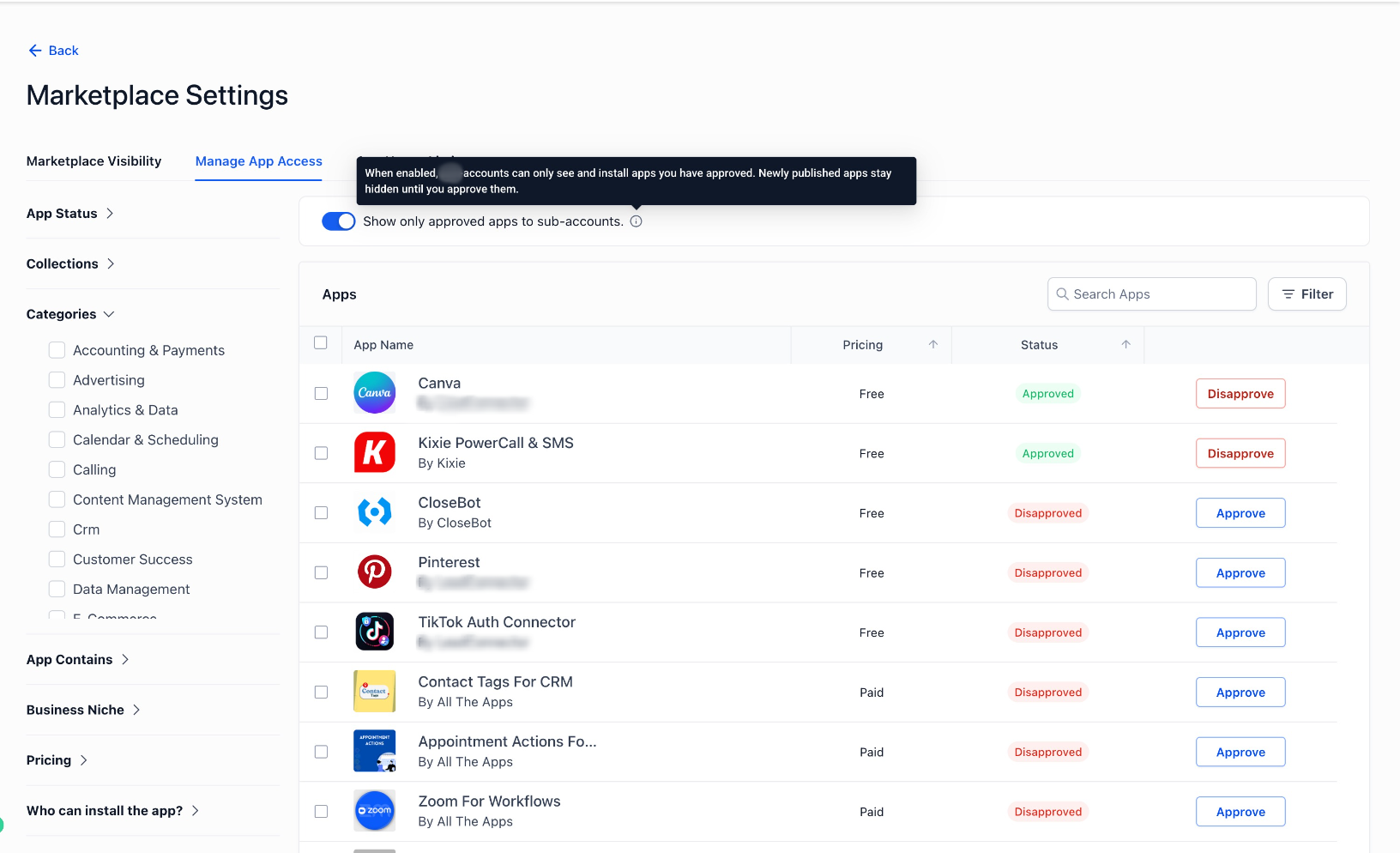
A new “Show only approved apps to accounts” toggle is available under Manage App Access.
- When disabled (default), all Marketplace apps are available to accounts.
- When enabled, only apps explicitly approved by the accounts are available to accounts.
- Accounts can review all apps and their current approval status from a single view.
- Apps can be approved or disapproved directly from the app list.
- Search and filters make it easier to find and manage specific apps.
The page has also been revamped using Highrise components for a more consistent Marketplace experience.
How to use it
- Go to App Marketplace → Settings → Manage App Access.
- Enable Show only approved apps to accounts if you want to restrict app access.
- Review the Marketplace app list and its current approval statuses.
- Use Approve or Disapprove to control which apps your accounts can access.
- Use search and filters to quickly find specific apps.
Why we built it
Previously, app access management relied on auto-approval behavior that could result in new apps being approved automatically and created confusion around which apps were accessible to accounts.
Additional Notes
We recommend reviewing and cleaning up your approved apps list, especially if you plan to enable the new setting, as existing approval-related issues have now been fixed.
Preview
Was this article helpful?
That’s Great!
Thank you for your feedback
Sorry! We couldn't be helpful
Thank you for your feedback
Feedback sent
We appreciate your effort and will try to fix the article