Overview
We’ve improved the calendar setup experience to make it
easier to identify and fix missing required
fields while editing and saving a calendar.Previously, when required fields were missing in the current tab, clicking "
Save changes
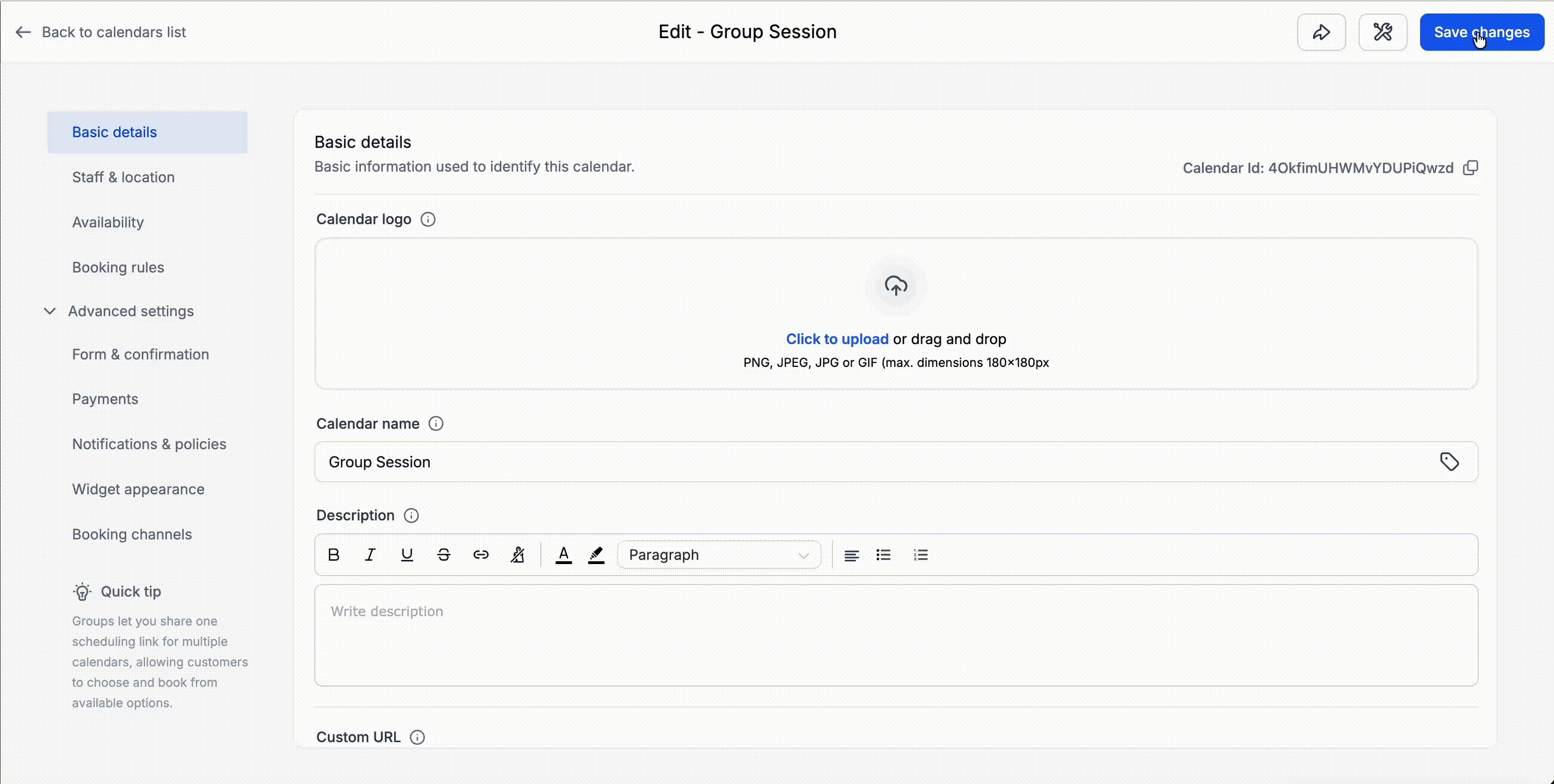
" would not complete the action — but the interface did not guide users to the exact issue. This often caused confusion about whether the calendar was saved and led to unnecessary troubleshooting.With this update, you’re now taken directly to the field that needs attention.
What’s New
- Automatically scrolls to the validation error within the same tabwhen saving edits to a calendar.
- Continues to navigate to the correct tabif errors exist elsewhere.
- Highlights errors clearly so they can be fixed quickly.
How It Works
- When you click Save changesand there are validation errors:
- If the error is in the current tab, the pagescrollsdirectly to it and highlights the error.
- If the error is in a different tab, the systemnavigates to that taband highlights the error.
Why This Matters
- Removes confusion when changes don’t get saved.
- Helps users quickly identify what needs to be fixed.
- Reduces unnecessary support queries.
- Makes calendar setup smoother and more intuitive.
Was this article helpful?
That’s Great!
Thank you for your feedback
Sorry! We couldn't be helpful
Thank you for your feedback
Feedback sent
We appreciate your effort and will try to fix the article